Automated Fitness Tracking for PHED 1164: Grade the Activity Lab Without Spreadsheets

PHED 1164 carries two lab hours a week, and the catalog description says students will participate in physical activities. In a face-to-face section you watch that happen. In an online or hybrid section, the activity happens on a sidewalk, a treadmill, or a job site you never see, and somebody has to turn it into a grade every week.
Automated fitness tracking hands that job to the devices students already carry. A phone or wearable records steps and active minutes, the data reaches the course platform on its own, and a published scale converts each week into points. This guide explains how the process works for PHED 1164 and KINE 1164, the scoring rules that keep it fair, what the instructor still checks each week, and how the grades reach your LMS.
Automated fitness tracking for PHED 1164, in brief
- Students connect a phone or tracker once, through Google Health or Apple Health.
- Steps and active minutes sync on their own, with a dated record for every day.
- Each week scores on the best five days, using steps or minutes, whichever is higher.
- The instructor reviews exceptions: sync problems, inactive students, and approved adjustments.
- Scores export as a CSV file formatted for D2L, Canvas, or Blackboard.
The Grading Workload Automation Removes
Count the weekly activity records in an ordinary teaching load. Four PHED 1164 sections of 35 students, graded weekly across a 14-week tracking window, produce 1,960 activity records per term. A paper log or a screenshot upload asks you to open each one, read it, check it against the week's target, and type a score into a spreadsheet. At two minutes apiece, that is more than 65 hours of data entry every semester, before a single grade appeal.
Self-reported logs also measure the wrong thing. A student filling in a form on Sunday night reports a memory of exercise, and the instructor grades the memory. Device data records the activity when it happens, which makes the grade both faster to produce and easier to defend.
How Data Travels From a Wrist to a Grade
- The device records. A smartphone counts steps with its built-in motion sensors. A wearable such as a Fitbit, Apple Watch, Garmin, Samsung Galaxy Watch, or Oura Ring adds active minutes and heart rate.
- The phone collects. On Android, the tracker's app passes data through Android Health Connect to Google Health. On an iPhone, the Google Health app reads Apple Health.
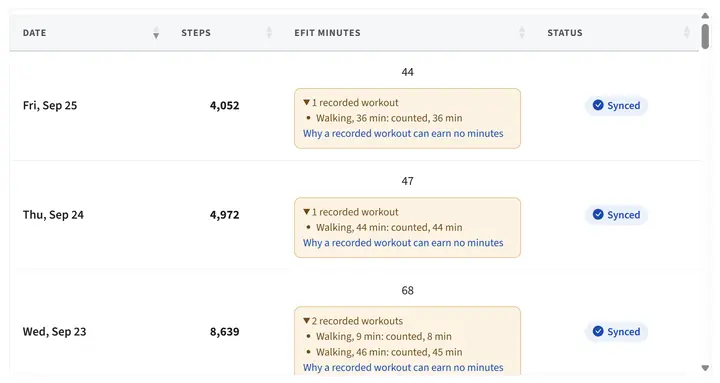
- The student authorizes once. In eFit, the student selects Sync Tracker, connects Google Health, and approves read-only access to steps and active minutes. Every day after that syncs automatically.
- eFit scores the week. Each day lands in a dated record, and the week's points calculate against the course scale as the days pass.
- You export. When grades are due, you download a file formatted for your LMS and import it.
Students never need to buy hardware. A phone carried in a pocket earns credit through steps alone. Our guide to choosing a fitness tracker for a PE class compares the devices for instructors who want to recommend one.
Scoring Rules That Keep the Grade Fair
Automation only helps if the rules are ones you would defend in a grade appeal. These defaults come from online PHED 1164 sections that run on eFit, and each one is adjustable.
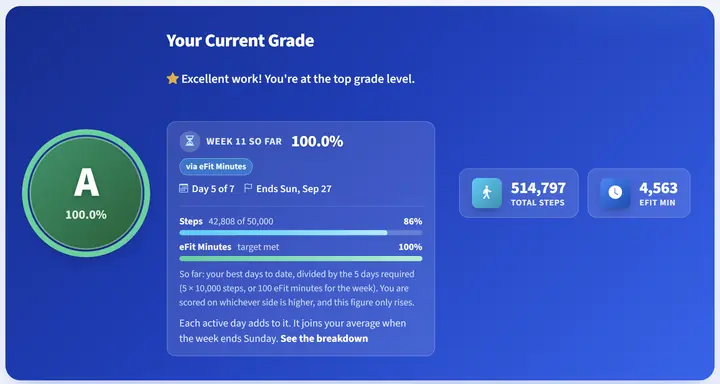
Best five days out of seven
Each week adds up the student's five most active days and divides by five. A sick day, a double shift, or a phone left at home costs nothing, and students who move every day earn no extra points for days six and seven. You can set the required days anywhere from one to seven.
The higher of steps or minutes
The default scale awards full credit for an average of 10,000 steps a day or 100 active minutes a week, with 10 percent of the credit for every 1,000 steps or 10 minutes below that. The student earns whichever score is higher. A swimmer or a cyclist with few steps earns credit through minutes, and a student who walks all day at work earns it through steps.
Individual targets and adjustments
Every row of the scale is editable, so you can lower the top target for a section of working adults. Students with a documented limitation can receive individual targets. Holidays can be excused, you can enter credit for a week by hand, and students can submit a self-report for a day their device missed, which counts once you approve it.
The semester grade is the average of the completed weeks. Students watch their own week fill in as they go, which turns the grade into a daily nudge. The class Walking Journey, milestone badges, and a certificate for finishing at 70 percent or higher add reasons to keep moving.
What the Instructor Still Does Each Week
With the data entry automated, the instructor's weekly job is handling exceptions. A short Monday check covers it:
- Sync problems. A report lists students whose data stopped arriving, usually after a phone update reset a permission. A short email with the reconnect steps fixes most of them.
- At-risk students. A second report flags students falling behind, while there is still time to recover the grade.
- Self-reports. Approve or decline the days students submitted for a device that failed.
- Announcements. eFit already emails students who have no recorded activity for four days, so your weekly message can focus on the module and the next due date.
Integrity, Appeals, and Privacy
A device record is harder to fake than a typed log, and it leaves a history. If a student questions a grade, the day-by-day record shows exactly which days counted and why. Put the integrity rule in your syllabus too: only activity from the student's own device counts, and submitting another person's activity is an academic integrity violation.
Privacy deserves its own paragraph in the syllabus. eFit reads only the activity and nutrition data a student authorizes, the connection is read-only, and students can disconnect at any time. eFit is Google API Verified at CASA Tier 2 for access to health and fitness data and treats PE grades as FERPA education records. Our article on FERPA compliance for PE technology covers the details your department may ask about.
Getting Grades Into the LMS
Your LMS gradebook stays the official record. When activity or fitness assessment grades are due, choose your LMS in eFit and download a CSV file formatted for D2L Brightspace, Canvas, or Blackboard, then import it into the matching grade column. Some PHED 1164 instructors post activity and fitness assessment grades once at the end of the term and tell students in the syllabus that eFit shows the running grade until then. The LMS integration page walks through the import for each system.
A Week-One Setup Checklist
- Create the course with your term dates. Quick Setup builds the activity tracker assignment, the fitness assessment, and the written paper, and calculates their dates.
- Confirm the scale, the required days per week, and any holidays.
- Post the registration link in your LMS with a one-paragraph explanation of why the course uses device data.
- Ask students to install Google Health, connect their device, and sync before the end of the first week.
- On the first Monday, check the sync report and contact anyone who has not connected.
- Open the fitness pre-test window, so students record a starting point while the semester is fresh.
The full course plan, including the grading breakdown and a 16-week schedule, is in our online PHED 1164 syllabus template.
Watch a week score itself
The free demo opens a populated PHED 1164 style course with weekly activity grades, fitness assessments, and exports ready to try. Faculty accounts are free, and student access is $59 per semester.
Try the free demoKey Takeaways
- Automated tracking turns the PHED 1164 lab component into dated device data, with no logs to type or read.
- Score each week on the best five days and award the higher of steps or active minutes.
- Keep targets editable for sections and for individual students with documented limitations.
- Spend the weekly check on exceptions: sync problems, at-risk students, and self-reports.
- Export to the LMS as a formatted CSV, so the official gradebook stays where your college expects it.
Frequently Asked Questions
What is automated fitness tracking in PHED 1164?
Automated fitness tracking records students' steps and active minutes with a phone or wearable and sends the data to the course platform through Google Health or Apple Health. The platform scores each week against a published scale, which replaces paper logs and screenshot uploads for the activity component of PHED 1164 and KINE 1164.
Which devices work for PHED 1164 activity tracking?
Any smartphone that counts steps, plus wearables that sync to Google Health or Apple Health, including Fitbit, Apple Watch, Garmin, Samsung Galaxy Watch, and Oura Ring. A phone alone is enough to earn full credit through steps.
How is weekly activity scored?
A common rule scores the student's best five days of the week and awards the higher of two measures: average daily steps, with 10,000 earning full credit, or weekly active minutes, with 100 earning full credit. The semester grade is the average of the weekly scores.
What happens when a student's tracker stops syncing?
The instructor sees the student on a sync report and sends reconnect steps, which usually fixes a permission reset after a phone update. For days the device missed, the student can submit a self-report that counts once the instructor approves it.
Can students fake activity data?
Device data is far harder to fake than a typed log, and every day has a dated record that shows patterns across the term. Pair the data with a syllabus rule that only activity from the student's own device counts, and treat submitting someone else's activity as an academic integrity violation.
How do activity grades get into D2L or Canvas?
The instructor downloads a CSV file formatted for D2L Brightspace, Canvas, or Blackboard and imports it into the gradebook column for the activity assignment. The LMS gradebook stays the official record.
The activity lab is where PHED 1164 students practice what the modules teach. Automated tracking keeps that practice visible to the student every day and turns it into a grade you can stand behind.

Tim Mousel, M.S.
Tim Mousel, M.S., is a full-time faculty member in the Kinesiology department at Lone Star College-CyFair, chair of the Lone Star College System-Wide AI Task Force, and a TEDx speaker. He has taught in higher education since 1993, built eFit Software in his own classroom, and reviews every article on this blog.
How we write and check articles. Spotted an error? Send a correction.